This post was last updated on February 9th, 2024 at 11:41 am.
When it comes to support our web-based church software is saying goodbye
to the internet browser that starts with an i and ends with tears
and suffering
This is for all of you who use Windows computers. If you’re not sure whether you’re on Windows, or what version you have, find out more about how to identify your operating system. Windows is a computer operating system developed by Microsoft and is the most popular operating system in the world for desktop and laptop computers.
IconCMO is no longer supporting Internet Explorer, in any version. That doesn’t mean you can’t use Internet Explorer on IconCMO any more. But it does mean that we can’t guarantee things in IconCMO will work well when you use Internet Explorer. If you use Internet Explorer to open IconCMO and it gives you problems, we’ll recommend using a new browser.
Also, if you’re using Windows Vista or Windows XP, you should upgrade to a newer version. Vista and XP are no longer supported by Microsoft, so modern browsers like Chrome and Firefox are no longer updating for Vista and XP. Also, because Microsoft isn’t supporting Vista and XP, they’re no longer making security updates, so Vista and XP are not secure operating systems.
What is an internet browser?
An internet browser (aka ‘web browser’, aka ‘browser’) is an application your computer uses to open pages on the internet. It’s your gateway to the internet.
Each browser has its own behaviors and ways of doing things, its ups and its downs.
If you click this icon to get on the internet…

you’re using the internet browser called Internet Explorer.
Internet Explorer, once the most popular web browser, has now become thoroughly outdated. Windows now comes with the more modern Edge browser and has slowly phased Internet Explorer out.
The Edge browser has an icon like this:

If you’re currently using Internet Explorer as your browser, we highly recommend you use a new browser to log in to and use IconCMO. Firefox and Chrome are at the top of our list of recommendations, but Edge should work well, too.
Desktop shortcut to log in to IconCMO
You may have had a shortcut set up on your desktop to log in to your IconCMO account through Internet Explorer. You just click on it and it takes you to the login page. If you quit using Internet Explorer (good idea!), you’re not going to want to use that shortcut anymore. It’s going to try to use Internet Explorer again.
You can get a new browser and set up a shortcut for that browser.
Get a new browser and a new shortcut to IconCMO
Use any of the following recommended internet browsers to replace Internet Explorer and set up a new desktop shortcut to log in to IconCMO.
Note: you don’t need to have a desktop shortcut. You can just go to https://www.iconcmo.com and click on ‘Login’ in the upper right. But we’ve found that many of our clients prefer to have a desktop shortcut to get to their IconCMO account quickly.
Chrome 
Here’s how to get Chrome and set up a desktop icon for logging in to IconCMO.
- Go to https://www.google.com/chrome/ and click the ‘Download’ button. Follow the prompts. By default, Chrome will become your default browser unless you uncheck the box to ‘Make Chrome your default browser’.
- Open your new Chrome browser. It will be an icon that looks like this
 . It may be by the start button at the bottom of your screen or on the desktop, or you may see it when you click the start button in the lower left. If all else fails, hit the window key on your keyboard and start typing Chrome, and click on it when it comes up.
 - Go to https://www.iconcmo.com.
- Click on the three dots in the upper right corner of your browser.
- Then, click on ‘More Tools’.
- Click on ‘Create shortcut…’.
- You’ll get a prompt to create the shortcut. You can rename the shortcut if you want. Click the ‘Create’ button.
- Click the login dropdown in the upper right
 .
. - Put in your login phone number, username and password.
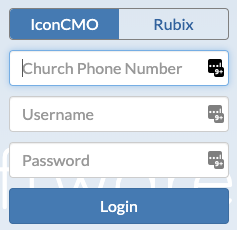
- When you click ‘Login’, you should get a prompt that asks if you want the browser to remember your username and password. We recommend saying yes.
Firefox 
Here’s how to get Firefox and set up a desktop icon for logging in to IconCMO.
- Go to https://www.mozilla.org/en-US/firefox/new/ and click the ‘Download’ button.
- Open your new Firefox browser. It will be an icon that looks like this . It may be by the start button at the bottom of your screen or on the desktop, or you may see it when you click the start button in the lower left. If all else fails, hit the window key on your keyboard and start typing Firefox, and click on it when it comes up.
- You should get a prompt asking if you want to make Firefox your default browser. Click the button to make Firefox your default browser.
- If you can’t see your desktop, resize your browser so you can see the desktop.
- Go to https://www.iconcmo.com.
- Click in the address bar near the top to highlight it.
- Then, click on the highlighted address and hold the mouse button down as you drag the address onto the desktop.
- Click the login dropdown in the upper right .
- Put in your login phone number, username and password.
- When you click ‘Login’, you should get a prompt that asks if you want the browser to remember your username and password. We recommend saying yes.
Edge
Here’s how you can set up a desktop icon to log in to IconCMO using Edge.
- Edge comes with Windows 10.
- Right-click on the desktop > New > Shortcut.
- Put in the following text for the shortcut’s location: %windir%\explorer.exe microsoft-edge:https://www.iconcmo.com
- Click Next.
- Give the shortcut a name and finish.
- Double click on your new desktop shortcut.
- Click the login dropdown in the upper right .
- Put in your login phone number, username and password.
- When you click ‘Login’, you should get a prompt that asks if you want the browser to remember your username and password. We recommend saying yes.
Pop-up blockers and the Internet Browsers
Pop-ups are one way that web pages use to bring up new information on your screen.
Often, pop-ups are annoying advertisements, so browsers can be set to block them.
But IconCMO uses pop-ups for some of our useful features, like printing checks or donation batch summaries.
You may need to adjust your new internet browser’s pop-up settings to keep it from blocking IconCMO’s useful pop-ups. You can look at our document on Browser Settings to learn more. Look there in the section on pop-ups for your preferred browser.
Great info!
Thanks, Helen!