This post was last updated on October 7th, 2022 at 09:44 am.
Fund transfers and account transfers are necessary transactions in any nonprofit organization’s financial activities. It’s important to understand the difference between a fund transfer and an account transfer, and how you can perform them in IconCMO. In this first of our two-part series, we will explore fund transfers.
Try our Church Management Software or request a demo.
Fund Transfers
A fund allocates and tracks money for a specific purpose. A fund transfer represents a reallocation of liquid assets from one fund to another. There are four main situations in which funds are transferred:
Inter Fund Loan:
An Inter Fund Loan is money transferred from one fund to another, with the expectation that it will be repaid. The fund making the loan has a bank account credited and an Interfund Receivable account debited. Then the receiving fund has a bank account debited and an Interfund Payable account credited. When the money is repaid (only with a Interfund Payment transaction), the transaction is reversed.
Inter Fund Transfers:
Inter Fund Transfer is money transferred from one fund to another, without the expectation that it will be repaid. For example, the General Fund may provide a monthly subsidy to the Youth Fund to help them support their activities. The bank account from the fund that is doing the subsidizing is credited and an operating transfer account called “Transfers Out” is debited. The receiving fund has the bank account debited and an operating transfer account called “Transfers In” credited. Both the “Transfers In” and “Transfers Out” accounts are of account type “Other Financial Sources-Uses” and category type “Operating Transfers.” Figure 1 shows the posting of such a transaction, while Figure 2 shows the resulting entries in the general ledger.
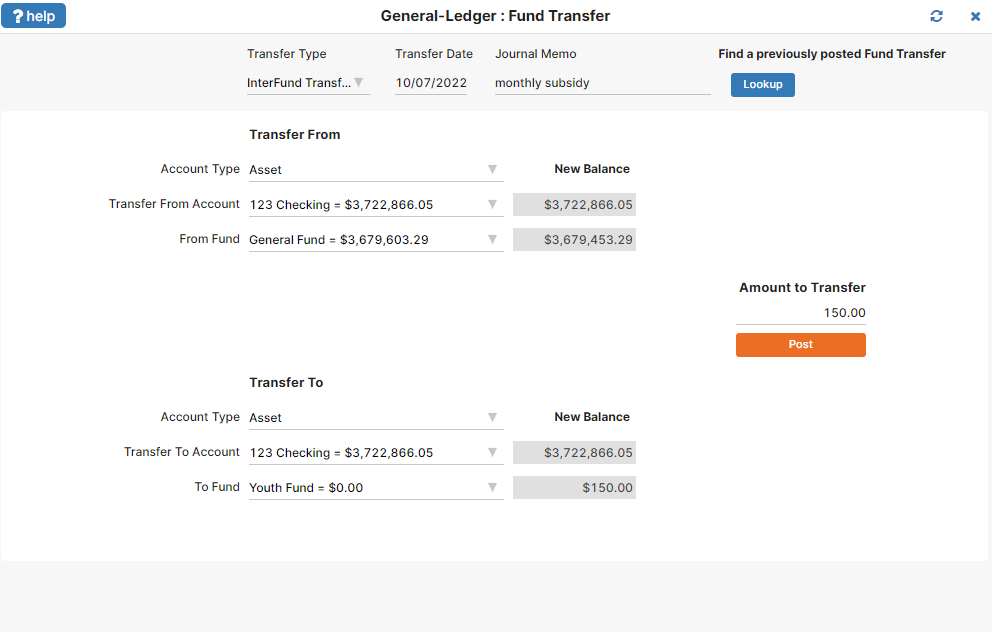
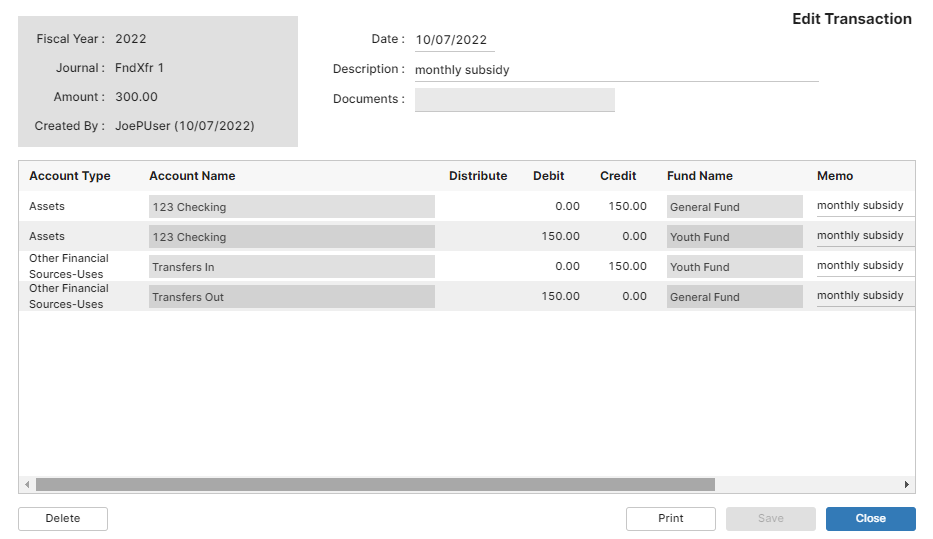
This is where most system fail. They do not take the money out through an account like Transfer In and Transfer Out.
Inter Fund Payment:
This is a repayment of an Interfund Loan. A fund was money via an Interfund Loan and wants to repay it. This transaction will clear the Interfund Payable account from the fund having the loan and it will clear the Interfund Receivable account from the fund making the loan.
Closing A fund:
Because Restricted and Temporarily Restricted funds are donor-restricted for specific use, money should not move out of these types of funds using Interfund Transfers or Interfund Loans. When money transfers, it is always done within bank account types.
According to GAAP guidelines, money cannot transfer into revenue or out of expense accounts, since by definition a transfer is neither revenue nor an expense.
Statement of Financial Position (Balance Sheet) reports Interfund Loans and Interfund Payments. Statement of Activity reports Interfund Transfers at the bottom.
Fund Transfer Form Operations
In IconCMO, access the fund transfer tool by selecting General-Ledger : Funds : Fund Transfer.
- Enter the dollar amount and choose the type of transaction. Interfund payments repay an Interfund Loan. The amount entered must be a positive value.
- Select the “From Fund” and the “To Fund” funds. Again, keep in mind that the “From Fund” cannot be a restricted or temporarily restricted fund.
- Select the bank account identifying where the money resides. Normally, the “Transfer To” account will be the same as the “Bank Account To Use”, however, by choosing a different bank account the system will automatically credit the “Bank From” account and debit the “Transfer To” account. This provides the additional benefit of transferring money from one fund to another and from one account to another within a single transaction.
- Enter all the information, then press the “Post” button. Using the bank account selected reduces the “From Fund” by the amount entered. The “To Fund” increases by the amount entered. If there is insufficient fund dollars for the transfer, it will still go through. Individual account balances, like a checkbook remain the same, unless you are also transferring the money to a different account.
What You Should Not Do
One thing you cannot do with the fund transfer tool is perform a transfer of dollars between accounts using the same fund as both the “From Fund” and the “To Fund.” You can, however, perform such an account transfer using the journal entry tool. Next time, we’ll take a look at account transfers.
[…] Part One of this series, we learned that a fund transfer represents a reallocation of liquid assets from one […]