This post was last updated on July 8th, 2024 at 04:15 pm.
How to Record Allergies and Emergency Contact Information in IconCMO
It’s that time of year when kids are getting ready to go back to school which means Sunday school will also be starting. As you are preparing lessons and organizing classrooms, you might want to consider entering groups and adding important information such as emergency contacts and allergies to share with Sunday school teachers or field trip chaperones. Important information can be tracked in our Individual Notes section.
Groups Setup
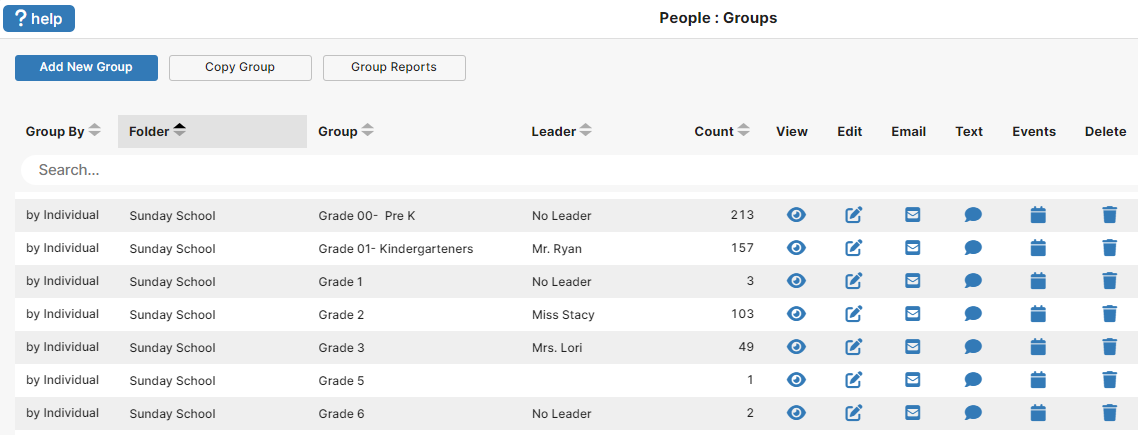
- Go to People: Groups
- Click Add New Group. A new line will populate and focus on the Folder field.
- Enter the category you would like to put this group into, such as Sunday School.
- Enter the name of the group, such as Grade 2.
- (Optional) Add the name of the Teacher/Group Leader under Leader field.
- Click the Edit icon for that group.
- Add children to the group.
- Scroll through the listed individuals and mark each one that should be in that group.
- Or click on the three dots in the upper right, and select your criteria using filters such as status code, age range, etc.
- The members that fit the given filters and criteria will populate in the list.
- Click “Add All” to mass add all listed individuals to the group, or mark the separate ones you wish to add.
- When you are done, click Close. You can Click the View icon to review the individuals in the group to see if you are missing any names.
Notes Setup
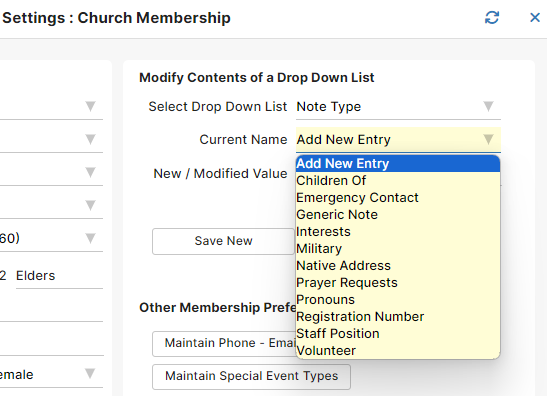
- Go to Settings: Church Membership.
- Under the Modify Contents of a Drop Down List section in the Select Drop Down List field, choose Note Type.
- Under Current Name, choose Add New Entry.
- Add the different types of Notes you would like to track for individuals in the New / Modified Value field.
- Click Save New.
Adding Notes
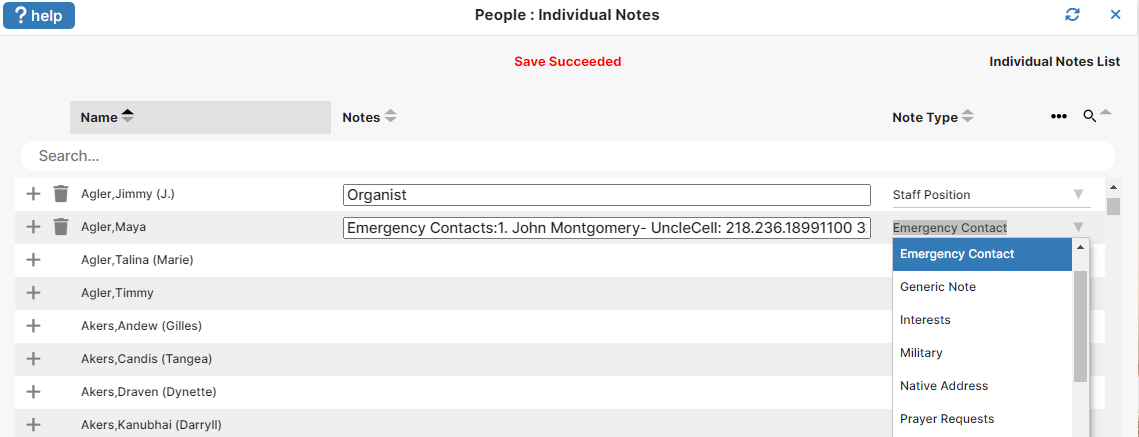
- Go to People: Individuals.
- Click on the Notes button at the bottom of the screen.
- Click the plus sign next to the name of the individual you want to add notes for.
- Record the note information such as emergency contact information and click the blue close button.
- Once the note is added, you can assign the Note Type for easier filtering and reporting.
Adding Allergies
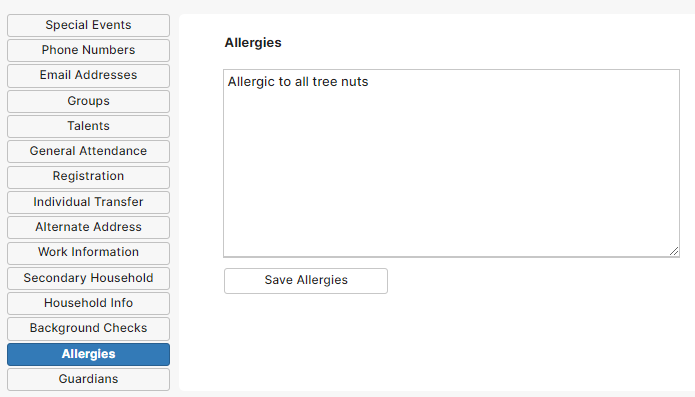
- Go to People: Individuals.
- Select the individual you wish to add allergy information for.
- Click on the Allergies button to open the text field.
- Record the allergy information.
- Click Save Allergies.
Report for Classroom Teachers & Chaperones
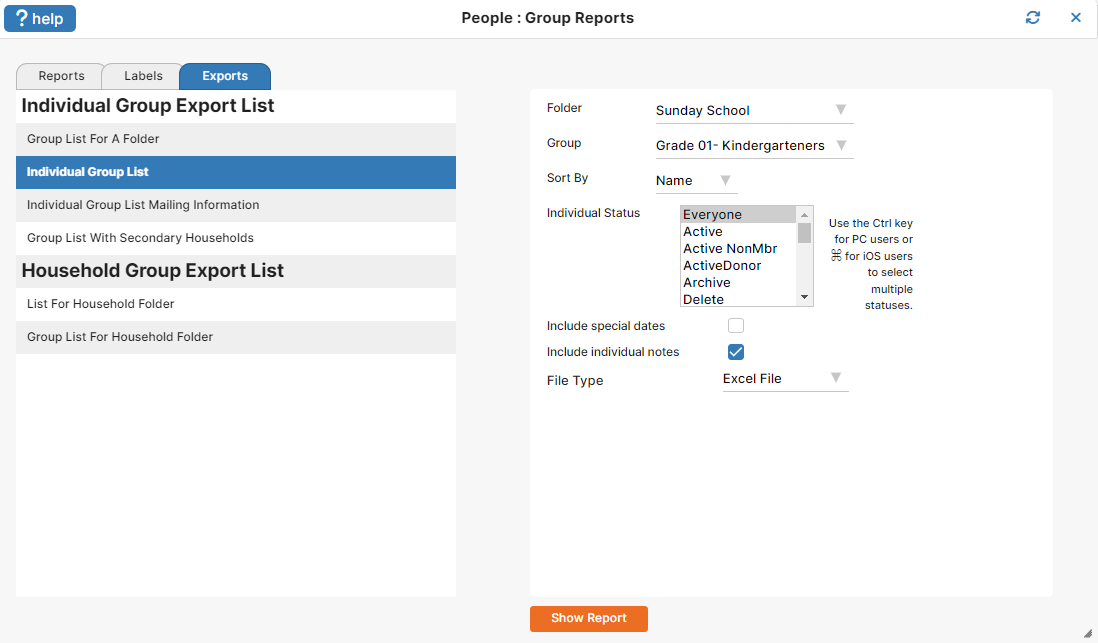
- Go to People: Groups and click the Group Reports button.
- Then click the Exports tab.
- Choose the Individual Group List report
- Select Folder and Group to run the report for and the option to Include Individual Notes
- Click Show Report
- You now have an excel file that can be customized with the information you want to share.
It suggested adding current date to know when updated. When I add data, including current date, and click on Save Special Event, it changes my age to zero. If left blank, it deletes the age in Member List.
Tried using Save Member and it will not save item in special event. When the special event was added, the date and location are not user defineable. Sounds like the link needs to be removed/modified from the special event page. Also should be able to define date as Today or something similar to autofill the current date
When using Special Events to entry information to a profile regarding Medications and/or Allergies the fields are much too small for putting in much useful information. I could only get 2 of 6 meds listed and only 1 full allergy in the fields available. I should think that these should allow up to 100 characters to be useful.
Special Event = Youth Health
Field Names = Name, Date (not defineable),Location (not defineable), Insurance Name, Policy#, Group# or N/A, Policy Holder, Meds/Frequency and Allergies
Thank you for the comment, Don! I am not able to replicate the problem you are describing.
After choosing ‘Special Events’ from the first drop-down list, the special events are listed in alphabetical order. Can you please double-check to make sure your Health Info special event is the one selected, not Birth?
The Save Member button should only appear when you are adding a new member into the system. It should not be showing while adding special event information for an existing record. The save button you want to be using will be in the darker blue box along with the special event information.
If that still isn’t working properly, please give us a call so we can troubleshoot further!
I saw you posted this in the support forum as well, so your suggestion regarding having more space available for recording medical information has officially been noted. Thanks again!
It is apparent that some coding changes have been made, because now when I access the special events and Health Info, all zeros are added for the date if you do not enter the date, whether you log on as an administrative capacity or as the parishoner user. To provide more space for medications, allergies or other medical concerns, I still think that adding the code in the Administrative capacity that allows “Add/View Notes” would provide adequate space to enter the needed information if that same code is applied on the parishoner side of the program.
With that said then, we need a means to access the information in a report as noted above.
The reason the notes section was not given in the Parishioners module at this point is because many churches use this for confidential notes on that member/household. By allowing them to see it, this would override that security. Whenever enhancements are done we must be conscientious about it working for all clients. – Jay
This is a very helpful addition. I do have two points to add.
First, I wish we could put “Emergency Info” under the main “View” list menu. In an actual emergency, if there is no print out available, one should be able to get to this info as quickly as possible. I’m not sure anyone but the database administrator will actually remember that one must first click on “Views” then click on “Special Events” then scroll to “Emergency Info.” I know that if an emergency occurred on a Sunday morning, this database administrator would not be working that day and therefore others would have to find the info.
Second, in the example above, you use “Emergency Contact” as a sample heading, but in fact that label has too many characters to fit in the box. I tried. But if you use “Emergency Info” it will fit. Just a helpful hint for others. [Update: Thanks, Skip. Good catch! If you look at the picture, I actually used Emergency Info for my example. This has been edited. Michelle]
Thanks for the feedback, Skip!